
How to Use Your Test Strips 4 Money Account: Labels, Shipments, Payments, and Sell Again
The short answer: Sign in to see your prepaid label, shipment progress, item notes, payment details, and past orders in one place. Returning sellers can use Sell again to repeat an order and can update an eligible shipment before USPS scans it.
This guide explains the rebuilt Test Strips 4 Money account from start to finish. It covers the shipment form, checkout, labels, tracking, payments, and repeat shipments.
Important facts before you start
- We pay within 1 business day of receiving your shipment.
- You can be paid by PayPal, Zelle, or check by mail.
- PayPal charges the seller a fee on money received. Zelle and checks have no fee.
- A prepaid PDF label, QR code, or printed label by mail is free.
- A shipping kit includes a box and label. It costs $6, which is deducted from your payment.
- Prices are estimates until we receive and inspect the supplies.
Already have an account? Log in here. Ready to see what we buy? Visit the sell diabetic supplies page.
1. Build your shipment
The shipment builder has one card for each product. Choose the expiration-date range, then use the minus and plus buttons to set the number of boxes.
Each date range has its own count. For example, you can list boxes dated 12 months or more and boxes dated 9 to 11 months in the same shipment.
Your counts save automatically. There is no Update cart button.
Use Add another date range when the same product has different dates. Use the brand choices under Have more to sell? to add Dexcom, Omnipod, Libre, test strips, or other eligible supplies to the same shipment.
If you have a current code, enter it in the bonus-code box. You can also check the current bonus code page before you finish.
The red Get Prepaid Label bar shows the current estimated payment and takes you to checkout.
2. Review the three checkout sections
Checkout is organized into three numbered sections:
- Where the box ships from
- How do you want payment
- How you want your prepaid label
If you are signed in, the site can fill in your saved address, payment choice, and label choice. When an address or payment method is already on file, you may see a one-line summary instead of the full form. Choose Change if anything is different.
Check the shipping address
USPS checks the street address and ZIP Code while you type. You will see one of three messages:
- USPS verified this address. The address is ready to use, and the ZIP+4 may be added.
- USPS found a close match. Did you mean… Choose Use the USPS version or Keep what I typed.
- USPS can’t find this address. Review the street number, apartment, and ZIP Code. If the address is correct, select I checked it. This address is correct as typed.
Only the last result stops checkout until you confirm that you checked the address.
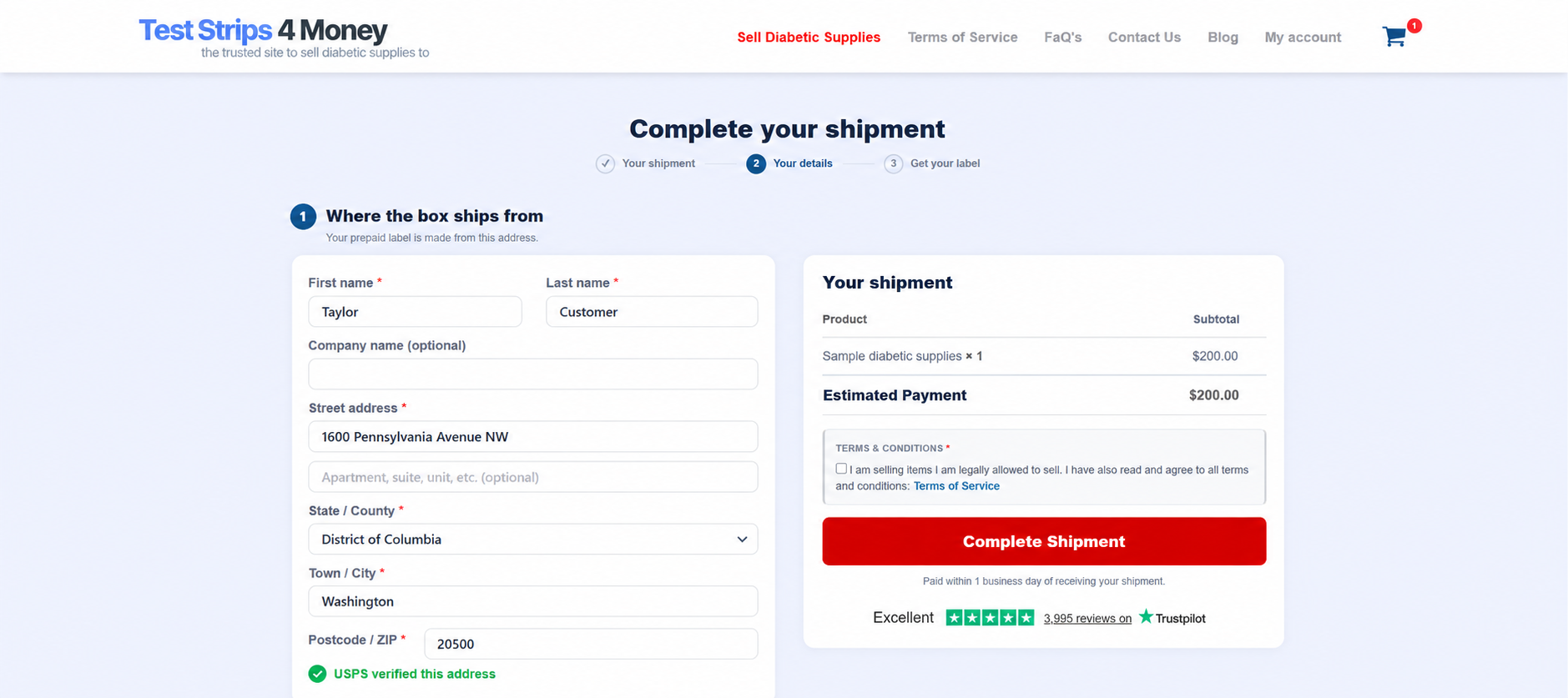
Sample screen. The name, address, item and price are illustrative.
Choose how you want to be paid
Every payment card says that payment is made within 1 business day of receiving your shipment.
| Method | What to know |
|---|---|
| PayPal | Marked Fastest at checkout. PayPal charges the seller a fee on money received. Confirm the email and the backup-check instruction. |
| Zelle | Enter the phone number or email enrolled with Zelle at your bank. Zelle has no fee from us. Confirm the details and backup-check instruction. |
| Check by mail | No payment fee. Choose from the available check-mailing options. Delivery time is separate from the time when we process the payment. |
If you signed in and already confirmed the same PayPal email or Zelle phone number or email on an earlier order, the confirmation may appear checked and locked. You will need to confirm again if you change the method or account detail.
The confirmation email repeats the PayPal fee notice and the backup-check choice so you have a record.
Choose your prepaid label
The four label methods are shown as separate cards with plain instructions.
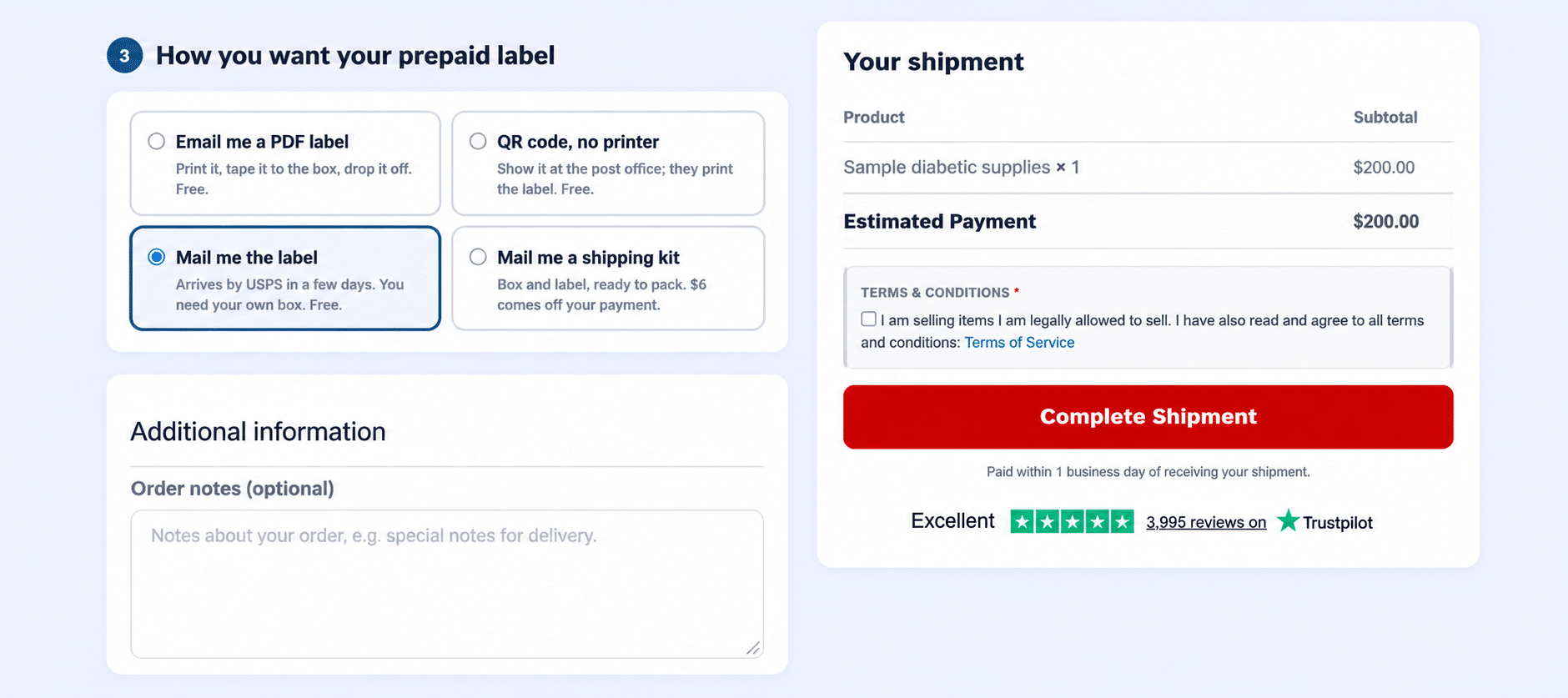
Sample screen. The item and payment estimate are examples.
| Label choice | Cost | What you do |
|---|---|---|
| Email me a PDF label | Free | Print the label, tape it to your own box, and take it to a post office or hand it to the carrier. |
| QR code, no printer | Free | Show the QR code on your phone at the post office counter. USPS prints the label. |
| Mail me the label | Free | Wait for the printed label to arrive by USPS, then attach it to your own box. |
| Mail me a shipping kit | $6 deducted from payment | We mail you a box and the label. |
These four methods are not new. What changed is that the choices are clearer and the label is stored in your account, not only in an email.
The order summary stays visible as you move through checkout. Review the items, estimate, terms, address, payment choice, and label method before choosing Complete Shipment.
Optional Priority Mail for some sellers
Some sellers will see an optional Priority Mail card at checkout. It says that $10 will be deducted from the payment and gives an estimated trip of 1 to 3 days instead of 2 to 5 days. It is not selected automatically.
This is a new option with limited use. It is not available on every account, and delivery estimates are not payment promises. Payment is still made within 1 business day of receiving the shipment.
3. Find or resend your label
Your label or QR code is sent by email and stored in your account.
On the Home page, an order waiting to ship has an orange card with Download my label or Show my QR code. The same action is at the top of the order page.
If you cannot find the email, choose Resend my label. It can be resent once every 24 hours.
If you decide not to send the shipment, choose I’m not sending it. This cancels the order so it no longer appears as waiting.
For packing instructions, see How to pack and mail your supplies.
4. Use the account Home page
When you sign in, the Home page shows the information most sellers need first:
- the total amount we have paid you;
- shipments on the way to us;
- orders still waiting to ship;
- your saved payment method;
- your special prices, if you have them; and
- a live Trustpilot rating.
A shipment in transit has a five-step bar: Form filled, Label emailed, In transit, Checked in, and Paid. The USPS tracking number is a link.
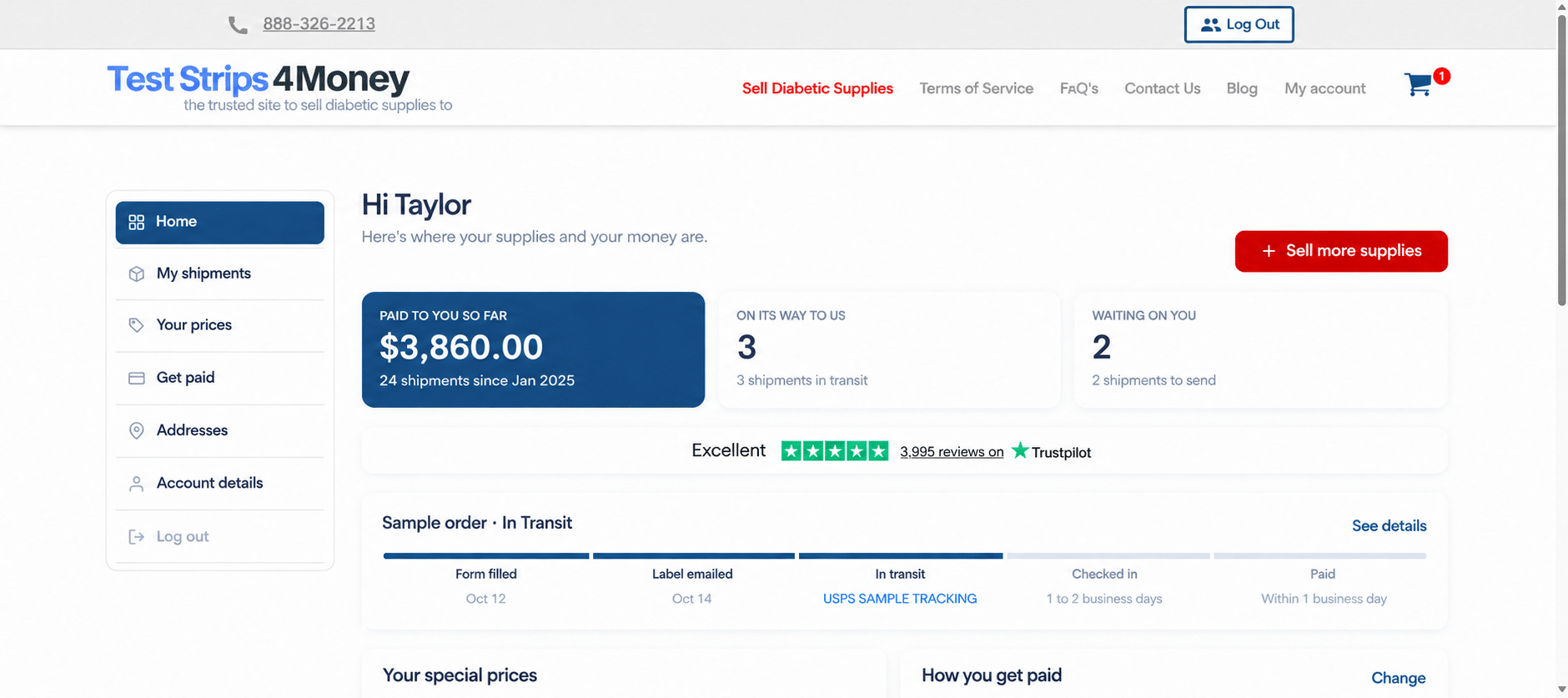
Sample screen. The name, order, price and tracking details are examples.
5. Track a shipment and see inspection notes
Choose Shipments to see every order. Each card uses a simple status such as Waiting for your box, On its way, or Paid.
The card also shows the estimate or final payment and gives you the actions that apply to that order. Those may include:
- View
- Track Shipment
- Track Payment
- Sell again
Open View to see the order timeline. It shows when the form was filled in, how the label was sent, when USPS scanned the package, when we checked the items, and when payment was made.
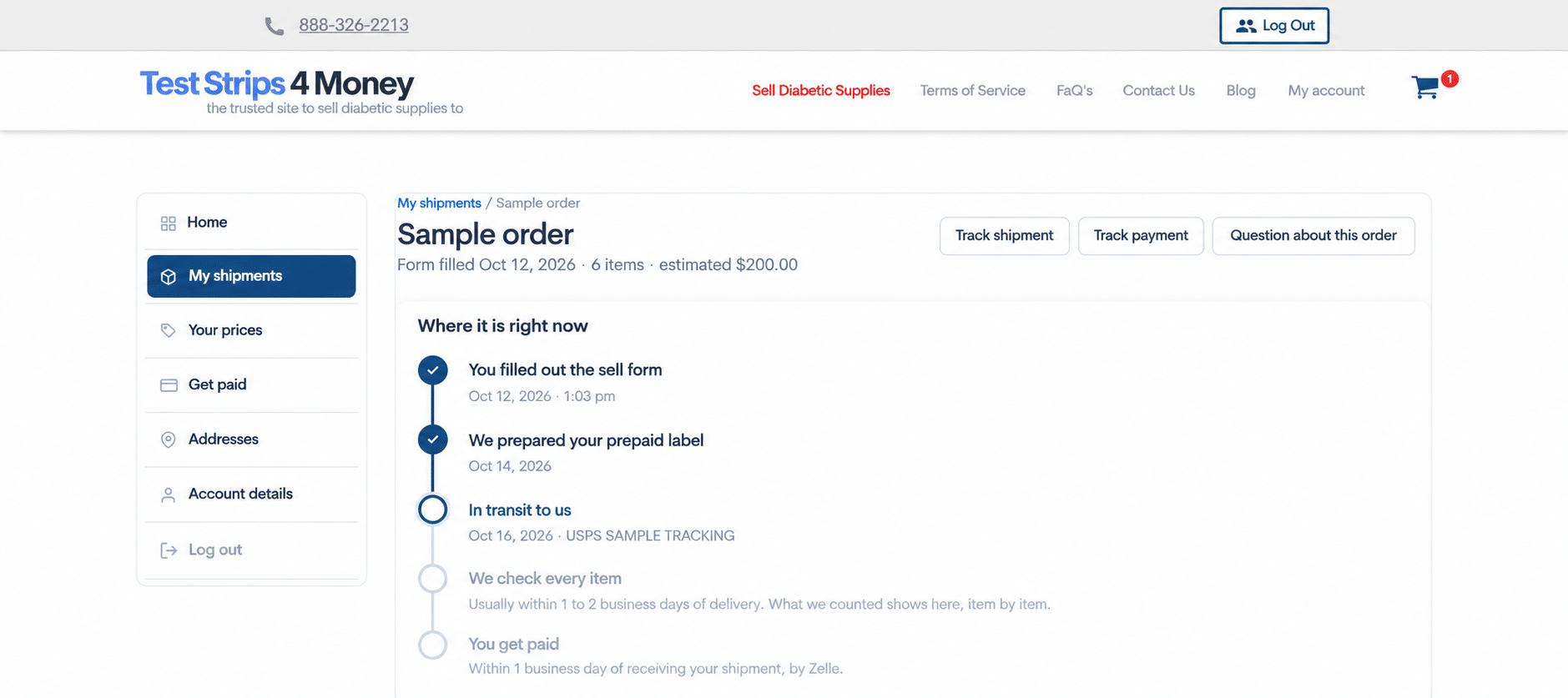
Sample screen. All order and tracking details are illustrative.
When we inspect the shipment, the page can show a note for each item. For example, a note may explain that a box was short-dated, damaged, or different from the form. Photos appear when we took them. Standard notes are written in plain English and Spanish.
Choose Question about this order to start an email with the order number already in the subject.
6. Sell the same supplies again
Choose the green Sell again button on a past order card or order page.
A window compares the earlier price with today’s price for each item. Special prices are included when they apply.
- If the price went down, the window tells you and asks you to confirm.
- If the price went up, the window tells you that you receive the higher price.
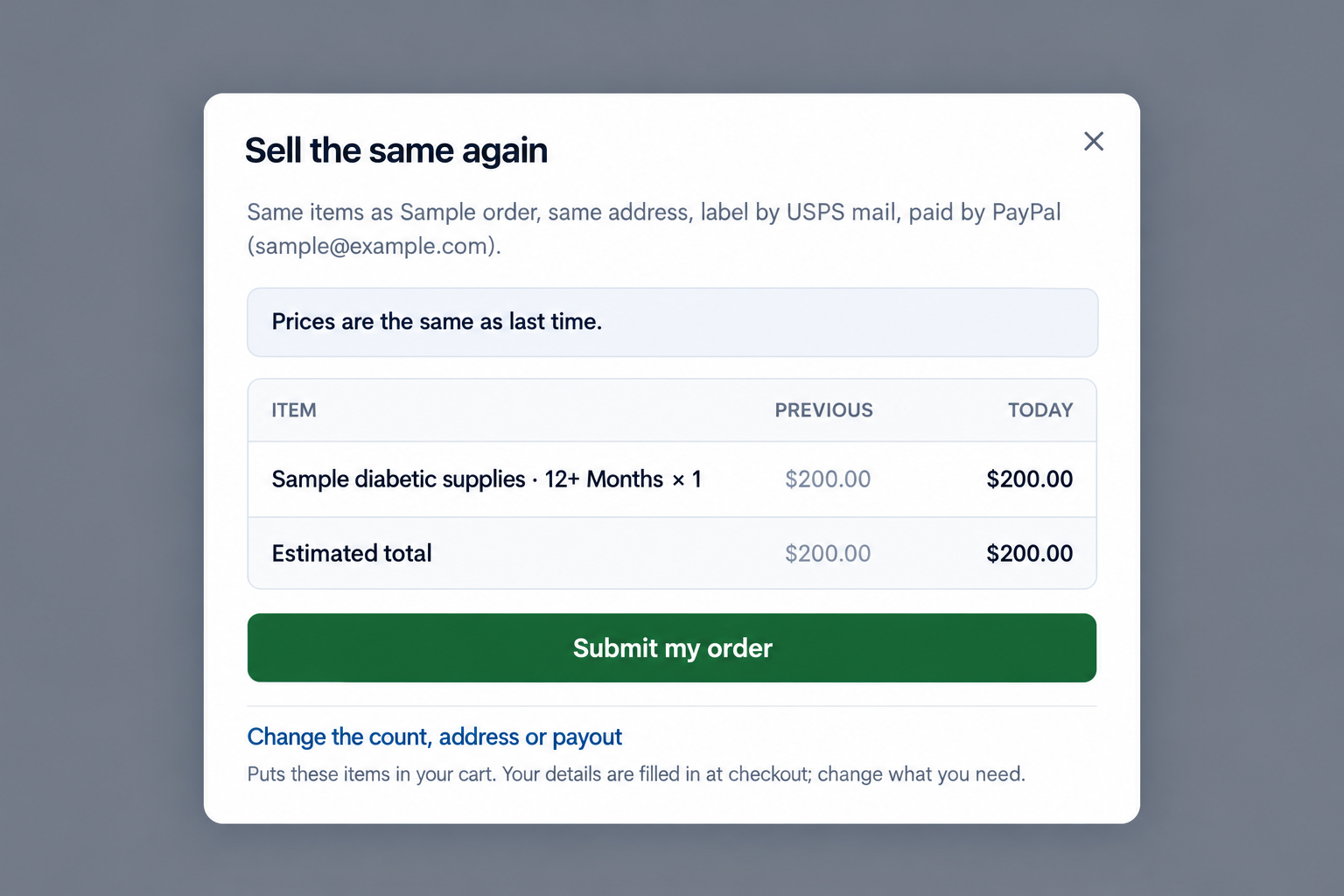
Sample screen. The email, product, order, and prices are examples.
Choose Submit to place the new order with the same address, payout method, and label choice. The label is provided in the same way as before.
Choose Change the count, address or payout when you want to update something. The earlier items are added to the shipment builder, and checkout is filled in for you to review.
7. Edit an unshipped order
On an eligible order that is still waiting for the package, choose Edit my shipment.
You can:
- raise or lower a quantity;
- remove an item; or
- add another product.
Saving the change updates the estimate and sends an updated order email. Your existing label stays the same, so you do not need a replacement.
This is a new feature with limited use so far. Once USPS scans the package, it cannot be edited. The page will tell you: This shipment is on its way and can’t be changed. If what’s in the box is different from the list, don’t worry: we pay for what we receive.
8. Save a payment method and review payment history
Choose Get paid to save PayPal, Zelle, or check for future orders. The saved choice fills in future checkouts, but you can change it when needed.
The page also lists payments we have made and provides a printable yearly statement.
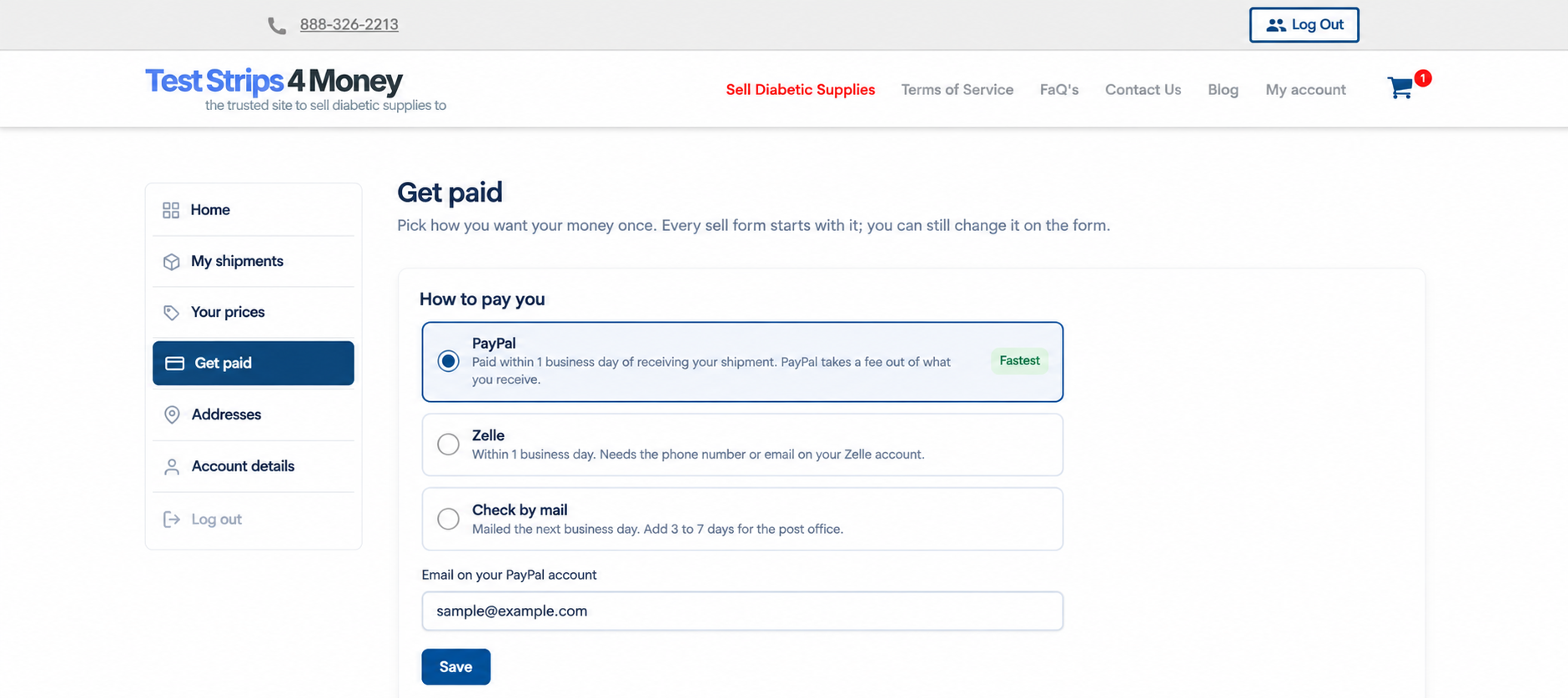
Sample screen. The email is not a real customer email.
An individual order shows the payment amount, date, and method. It also shows a bonus amount when one was included and the original estimate when the final payment was different.
For a check sent in a tracked envelope, the timeline can show Your check is in the mail with USPS tracking and later Check delivered. Plain envelopes do not have tracking. They receive a payment-printed notice, not an in-transit or delivered claim.
9. Follow the email updates
Account pages and emails work together. Depending on the order, you may receive:
- Order received: your label or QR code, item list, estimate, next steps, a link to the order, and the payment form PDF.
- Address check: if USPS could not verify the address, choose Yes, my address is correct or Fix my address.
- In transit: sent after USPS scans the package.
- Delivered: sent when the shipment reaches our office.
- Payment: shows the amount and method, including the exact bonus amount when there is one.
- Item issue or rejection: explains what we could not buy and includes photos when available.
- Special price: shows the product, date tier, minimum count, price, and deliver-by date for sellers who receive special pricing.
Staff names do not appear in seller emails or documents.
A next-shipment label for some regular sellers
Some regular sellers may receive a prepaid label for their next shipment at the same time as payment. The email uses the last order as an estimate and includes Edit my shipment so the list can be changed before shipping.
This new, limited-use option is designed to save regular sellers from filling out the form again. It is not sent to every seller.
10. Use the account on a phone
On smaller screens, the account menu becomes a bottom tab bar:
- Home
- Shipments
- Sell
- Get paid
- Account
The red Sell tab starts a new shipment. The other tabs keep account information within easy reach.
The login page and registration page use one layout. The information panel explains the three basic steps: fill in the form, ship free, and get paid within 1 business day of receiving your shipment.
Frequently asked questions
How fast does Test Strips 4 Money pay?
We pay within 1 business day of receiving your shipment. This is the processing time after the package arrives, not the time USPS takes to deliver it.
Can I get a prepaid label without a printer?
Yes. Choose QR code, no printer at checkout. Show the code on your phone at the post office counter, and USPS prints the label.
Is the shipping kit free?
The prepaid label is free. The shipping kit includes a box and label, and $6 is deducted from your payment.
What if I lose the label email?
Sign in and open the order. You can download the label or show the QR code there. Resend my label sends the email again and can be used once every 24 hours.
Can I change an order after submitting it?
An eligible order can be changed while it is still waiting to ship. Once USPS scans the package, it cannot be edited. We inspect the actual contents and pay for what we receive.
Which payment methods have no fee?
Zelle and checks have no fee from us. PayPal charges the seller a fee on money received.
Where can I get more help?
Read the frequently asked questions or contact us. You can also call 888-326-2213.
Ready to use the rebuilt account?
Log in to your Test Strips 4 Money account to see your Home page, shipments, labels, and payment history.
If you do not have an order yet, start with our current prices for diabetic test strips and supplies.